Mastering the Basics Can Save You Time and Boost Efficiency
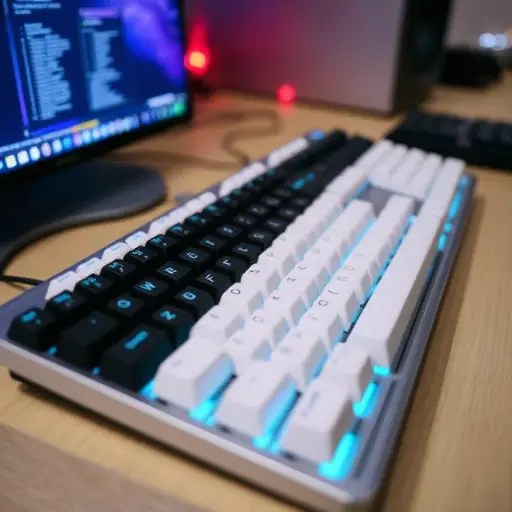
Windows keyboard shortcuts have been a staple feature in the operating system for decades, but most users only know the basics. These shortcuts may seem unnecessary at first glance, as you can accomplish the same tasks with your mouse, but using them can significantly improve your productivity. In this guide, we’ll explore the top 48 Windows keyboard shortcuts that can help you work more efficiently and finish your tasks early.
Productivity shortcuts are the most commonly used keyboard combinations, and they’re easy to master. They help you manage your work, and over time, these keystrokes become second nature. For example, the universal shortcut Ctrl + C copies text or files in any app, from Microsoft Word to photos in Google Drive. This shortcut can save you a significant amount of time, especially when working with multiple applications. Another essential shortcut is Ctrl + V, which pastes the copied text or files. You can also use Ctrl + X to cut the selected text or files, and Ctrl + Z to undo any changes you made.
Windows 11 also offers various Accessibility shortcuts that make the OS easier to use. These shortcuts can be particularly helpful for people with movement limitations or conditions that may restrict their usage of Windows. For instance, Windows + Tab opens the Task View, which allows you to switch between open windows and apps. You can also use Windows + D to show the desktop, and Windows + L to lock your computer. Additionally, Windows + E opens the File Explorer, and Windows + R opens the Run dialog box.
In addition to productivity and accessibility shortcuts, Windows 11 offers Navigation shortcuts that allow users to move around different apps without lifting their hands off the keyboard. These shortcuts are especially useful for multitaskers who juggle multiple programs at once. For example, Alt + Tab switches between open windows and apps, while Alt + F4 closes the current window or app. You can also use Win + Left/Right Arrow to snap the current window to the left or right side of the screen, and Win + Up/Down Arrow to maximize or restore the current window.
The Windows 11 File Explorer also has its own set of keyboard shortcuts to help users reorganize folders and files. Instead of right-clicking through menus or dragging items around to clean up clutter, these simple key presses make managing documents a breeze. For example, Ctrl + Shift + E opens the File Explorer’s Quick access panel, while Ctrl + Shift + F opens the File Explorer’s Search panel. You can also use Ctrl + Shift + O to open the File Explorer’s Open dialog box, and Ctrl + Shift + S to save a file.
Browser shortcuts are similar to productivity shortcuts, but they offer unique tools like creating tabs. These shortcuts were tested and confirmed to work across various browsers, including Chrome, Edge, and Firefox. For example, Ctrl + T opens a new tab, while Ctrl + W closes the current tab. You can also use Ctrl + N to open a new window, and Ctrl + Shift + T to reopen a closed tab.
As someone who has been writing about software and consumer electronics for almost 10 years, I’ve learned a lot of tricks to help me get through my day-to-day tasks. Many of the shortcuts in this guide I use every day, even when I’m not working. Ctrl + Z has practically become my best friend because I use it so often. I’ve also discovered new shortcuts while researching this piece, and I immediately saw their value to expert and casual users alike.
By mastering these 48 essential Windows keyboard shortcuts, you can boost your productivity, save time, and make your work more efficient. Give them a try and see the difference for yourself.




 The Tower Post